File guide for the configurator
Last updated: 25 October 2026
Import your drawing (DXF or SVG) into the configurator and get the price instantly: cutting, cut-outs, holes, pockets and engraving. For that, the file follows a simple colour and layer convention. Download the template, open it in your drawing software and use it as a base.
Template
The template has a side panel with a groove to the edge, blind holes and a hinge pocket, an L-shaped piece with a cut-out, a board with laser engraving and the rules written on the INFO layer. It imports without warnings — the ideal starting point.
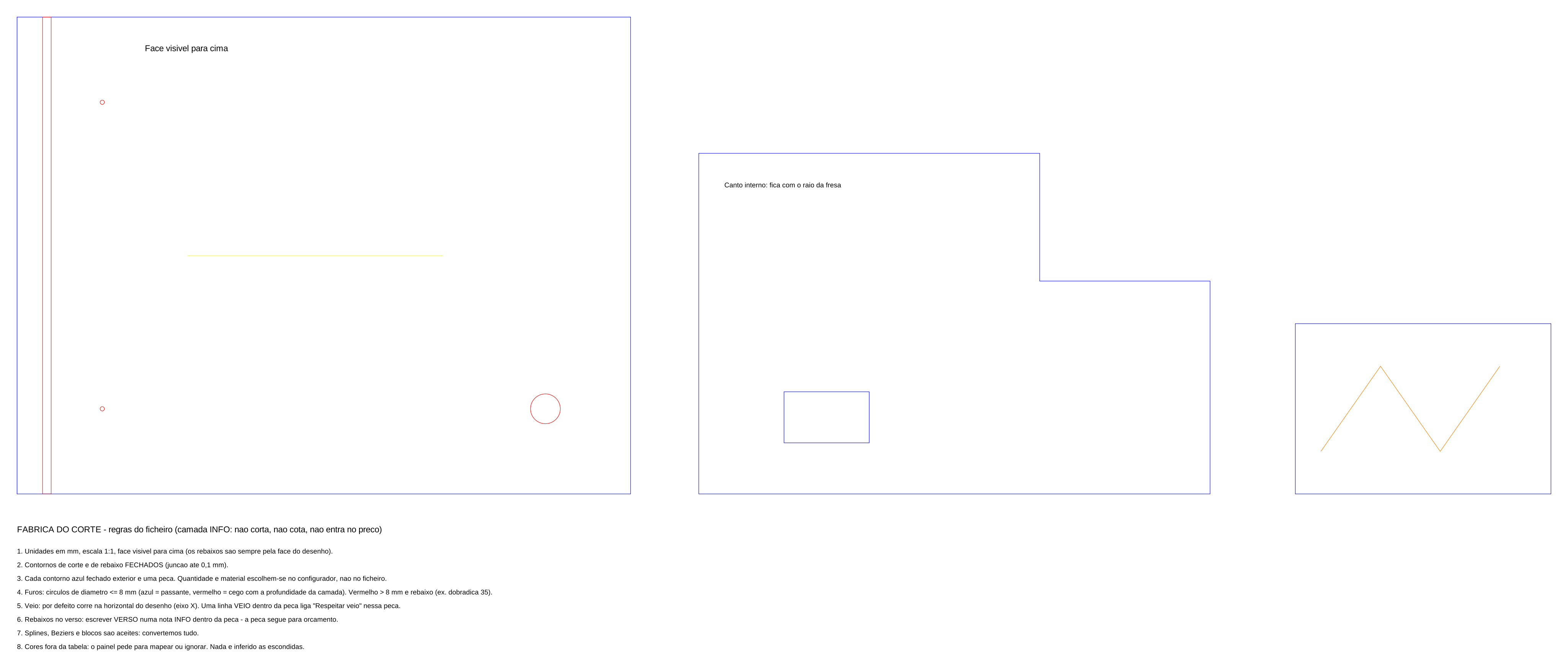
Illustrator: import the .ai directly (layers and colours are kept; for files saved as PDF-compatible only the 1st artboard counts) or save as SVG. DWG (AutoCAD): converted to DXF on our server — colours, layers and blocks are kept. PDF: vectors only, 1st page; use RGB colours.
Colours and layers
| Colour (ACI) | Layer | Role | Rule |
|---|---|---|---|
5 | CORTE | Through cut | Closed contour = one piece. Blue inside blue is a cut-out; a circle with Ø ≤ 8 mm is a through hole. |
1634 | REBAIXO_8 (REBAIXO_<mm>) | Pocket or groove | Closed contour inside a piece; it may run to the edge. The depth goes in the layer name (REBAIXO_8 = 8 mm) or is confirmed in the panel. Magenta, green and cyan are for other depths. Circles with Ø ≤ 8 mm are blind holes. |
30 | GRAVACAO | Laser engraving | Open or closed strokes. Text must be converted to outlines. |
2 | VEIO | Grain direction | One line inside the piece. Without it, the grain is the X axis of the drawing. |
7 | INFO | Information | Notes, dimensions and execution details. Never cut, never measured, never priced — it goes to the job sheet and the production file. |
In DXF the entity colour counts (or the layer colour when BYLAYER); a layer name matching the table wins over the colour. In SVG the stroke counts; a group named after the layer also counts. Colours outside the table are mapped by you in the import panel.
The 8 file rules
- Units in mm, 1:1 scale, visible face up — pockets are always on the drawn face.
- Cut and pocket contours closed; joining tolerance 0.1 mm.
- Several pieces per file: each closed outer blue contour is one piece. Quantity and material are chosen in the configurator, not in the file.
- Holes: circles with Ø ≤ 8 mm (blue = through, red = blind with the layer depth) count as drilling, per hole — not as cutting. A red circle with Ø > 8 mm is a normal pocket (e.g. Ø35 hinge).
- Grain: by default it runs along the horizontal of the drawing (X axis). A line on the VEIO layer inside the piece overrides it and turns on «Respect grain» for that piece — on the board it only rotates 0°/180°.
- Pockets on the back face have no automatic price: write VERSO in an INFO note inside the piece and that piece goes to a quote.
- Splines, Bézier curves and blocks are accepted — we convert everything (splines and Béziers to polylines, blocks expanded).
- Colours outside the table: the import panel asks you to map or ignore them. Nothing is inferred silently.
How to export from each program
The essential steps in the programs our customers use most. When in doubt, download the template above and draw on top of it.
AutoCAD, BricsCAD, Fusion 360, Aspire
.dwg or .dxf (any version; ASCII DXF is the safest)
- Draw at 1:1 and check the drawing units (UNITS command → millimetres): the configurator reads the file's $INSUNITS and warns when the sizes come out absurd.
- Use layers named as in the table (CORTE, REBAIXO_8, GRAVACAO, VEIO, INFO) or the convention colours, with objects set to BYLAYER.
- Closed outlines: closed polylines (PEDIT → Close), circles and arcs; loose lines with gaps do not make a part.
- Text only on the INFO and VEIO layers; dimensions, hatches, points and viewports are ignored.
- Save as DWG, or SAVEAS → DXF (AutoCAD 2013 or earlier, ASCII).
Illustrator
.ai (saved with “Create PDF Compatible File” or as version 8) or .svg
- Document in millimetres at 1:1 (File → Document Setup → Units: mm).
- One layer per function, named as in the table, or strokes in the convention's RGB colours (blue #0000FF, red #FF0000, orange #FF7F00, yellow #FFFF00, black).
- Plain strokes, no brushes or effects; expand appearances. Text to engrave goes to outlines; informative text stays as text on the INFO/VEIO layers.
- Closed paths (Object → Path → Join): the configurator points out any left open.
- Save as .ai (PDF compatible: only the 1st artboard counts) or export SVG (File → Export → SVG, styling “presentation attributes”).
LightBurn, Rhino, VCarve
.ai or .dxf exported by the program itself
- LightBurn: each layer colour becomes a colour in the file — blue for cutting, red or orange for the rest; File → Export → .ai or .dxf.
- Rhino: layers “Laser cut” and “Laser engrave” (or the table names) and Export Selected → .ai or .dxf, in millimetres.
- VCarve and Aspire: vectors on layers named as in the table; Export vectors → DXF. VCarve's .ai comes out all black — map the colours in the panel.
- In the import panel confirm the role of each colour or layer: these programs' names do not always match the convention.
vector .pdf (not scanned nor made from an image)
- Export straight from the drawing program (Save as PDF or Export PDF), at 1:1 and on a single page.
- Use pure RGB colours for strokes: CMYK colours arrive converted and may need manual mapping.
- Only the 1st page counts; images and shadings are ignored. Text converted to outlines is treated as geometry.
- If the program writes layers into the PDF (optional content), the panel shows them by name.
Good vs bad
1. Closed cut contour
Left: a closed rectangle with a through hole. Right: the contour does not close (gap over 0.1 mm): there is no piece and the panel warns.
2. Pockets in red, inside the piece
Left: a groove, a hinge pocket and a blind hole, all red and inside the piece. Right: a pocket running out of the piece into empty space and a groove drawn in blue — which would be cut right through.
3. Information in black, grain in yellow
Left: the note and the grain arrow on the right layers. Right: text and dimensions in blue: they would be treated as cuts and rejected by the panel as open contours.